
Let’s go over the two main areas for item storage in Blade & Soul Revolution: Mailbox and Inventory!
Mailbox
How to Check the Mailbox
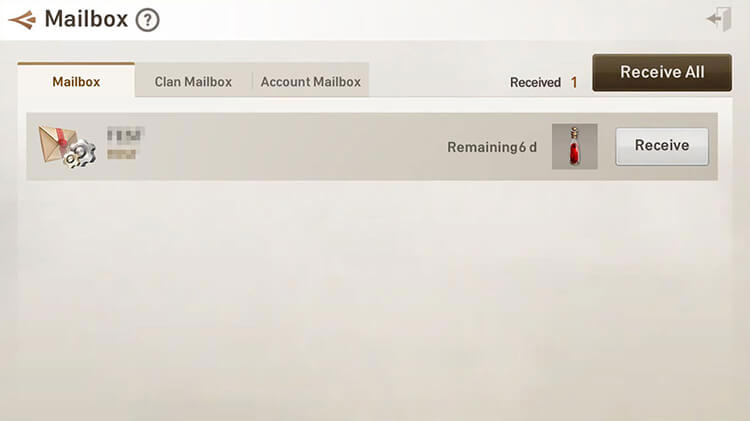
Tap the [Menu] from the main screen, then tap [Mailbox].
![Tap the [Menu] from the main screen, then tap [Mailbox]](https://hthgaming.com/wp-content/uploads/2020/05/mailbox-inventory-01-1.jpg)
Types of Mailboxes
Character Mailbox: Character-bound messages can be claimed here.
Account Mailbox: All characters on a specific account may claim messages here.
Clan Mailbox: All messages relating to Clans (like Clan Prizes) are stored here.
Items purchased from General and Equipment Merchants are placed directly into your Inventory.
Inventory
How to Check your Inventory
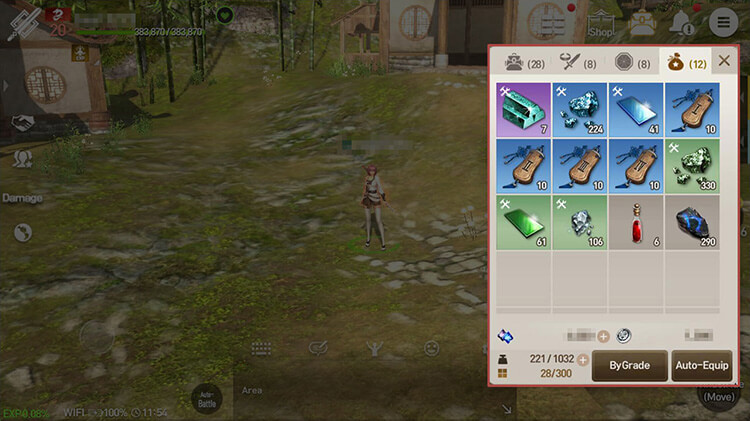
Tap the [Inventory] icon from the main screen to open it.
![Tap the [Inventory] icon from the main screen to open it.](https://hthgaming.com/wp-content/uploads/2020/05/mailbox-inventory-03-1.jpg)
Inventory Tabs
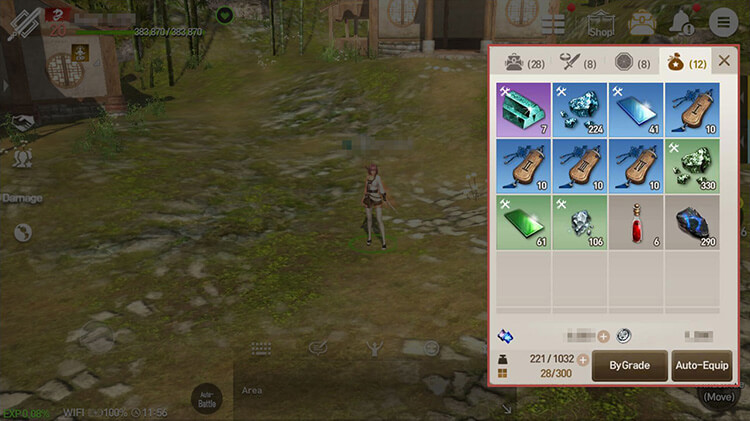
The Inventory is split into tabs: All, Equipment, Soul Shields, and Miscellaneous.
1. All: All items stored in the Inventory will be displayed here.
2. Equipment: Weapons and Accessories will be displayed here.
3. Soul Shields: All owned Soul Shields will be displayed here.
4. Miscellaneous: Healing Tonics, Elixirs, Crafting Materials, and Loot will be displayed here.
5. By Grade/By Type: Items will be sorted by grade or type.
Equipped items will be displayed at the top, regardless of sorting order.
6. Auto-Equip: Equipment with the highest stats (Grade and Enhancement included) will be equipped automatically.
The Auto-Equip feature doesn’t consider Set Bonus and Reforge Options.
Inventory Expansion Function
Tap an item from the Inventory to view item details.
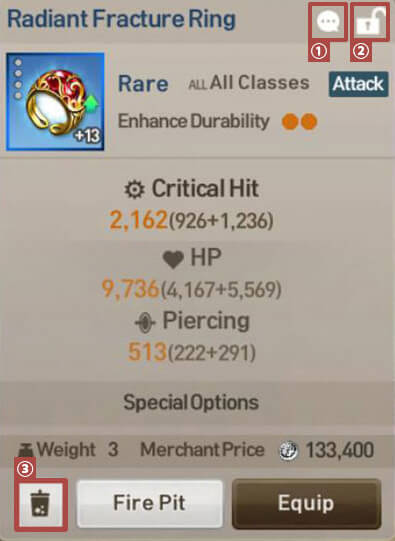
You can use the expansion function from the details pop-up.
Sending Item Info
Item info can be sent over chat.
Tap an item name sent as a message to view the item details.
Locking/Unlocking Items
Locking an item will prevent it from being sold, discarded, or salvaged.
Tap the lock button again to unlock the item.
Discarding Items
Discarded items disappear from the Inventory and can’t be recovered.
Weight / Item Slots
1. The Inventory has Maximum Weight and slot limits.
2. Each item has a weight. The current weight changes based on the sum of the weight of all items.
3. Equipment items (Soul Shields included) take up 1 slot each. Other items take up 1 slot as well, but stack with the same item.
How to Increase your Inventory’s Maximum Weight
1. Summoning a Pet that increases Maximum Weight increases the limits.
2. Expansion Tickets can be purchased from the shop. They must be used from your Inventory for the effect to apply.
3. Temporary Talismans can be purchased that expand your Maximum Weight for 14 days. The effects apply immediately after purchase.
Mini Bag
How to Check the Mini Bag
Tap the [Mini Bag] icon on the main screen to enter the menu.
![Tap the [Mini Bag] icon on the main screen to enter the menu.](https://hthgaming.com/wp-content/uploads/2020/05/mailbox-inventory-07-1.jpg)
How to Use the Mini Bag
1. The Mini Bag contains shortcuts to recovery/buff items, excluding HP Potions, currently stored in your Inventory.
2. Tap the Mini Bag icon to see the list of usable items.
3. Auto-use settings can be set for Elixirs and Pet Pods.
Dumpling and Supply Chests will be used immediately when tapped.
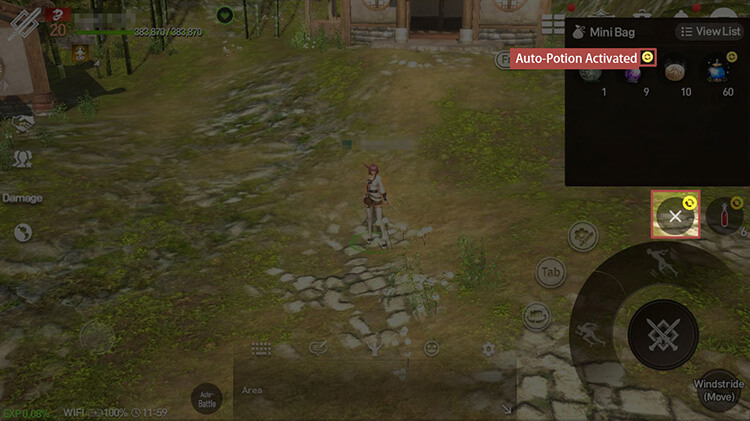
What is Auto-Use?
This feature allows you to use Elixirs and Pet Pods based on time or other requirements without other additional controls.
Potion Bag
How to Check the Potion Bag
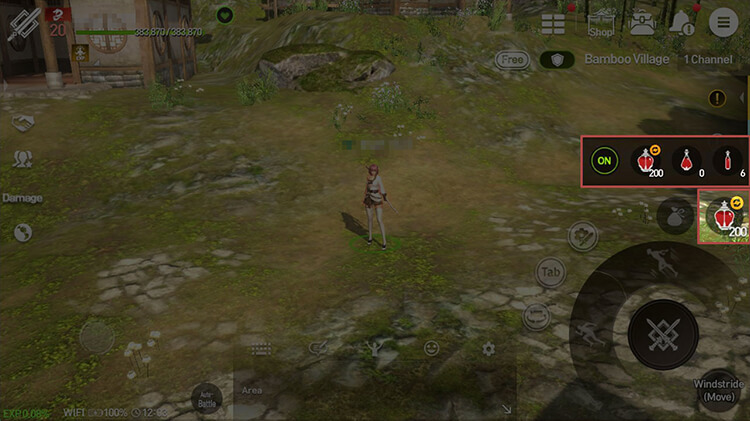
Tap the Potion icon on the main screen to open the Potion Bag menu.
How to Use the Potion Bag
1. Tap a potion to use it from the Potion Bag. It will trigger automatically when your HP falls below a certain %.
2. Auto-Use can be toggled ON or OFF in the Potion Bag.
Add hthgaming.com as a preferred source on Google